LOE
[Isaac sim Tutorial] Part 2. Ros2 Cameras 본문
출처
https://docs.isaacsim.omniverse.nvidia.com/5.0.0/ros2_tutorials/tutorial_ros2_camera.html
ROS 2 Cameras — Isaac Sim Documentation
Graph Shortcut We provide a menu shortcut to build multiple camera sensor graphs with just a few clicks. Go to Tools > Robotics > ROS 2 OmniGraphs > Camera. If you don’t see any ROS2 graphs listed, you need to enable the ROS2 bridge. A popup box below wi
docs.isaacsim.omniverse.nvidia.com
Tutorial 4: Add Camera and Sensors to a Robot — Isaac Sim Documentation
Tutorial 4: Add Camera and Sensors to a Robot Isaac Sim provides a variety of sensors that can be used to sense the environment and robot’s state. This tutorial guides you through attaching a camera sensor to a mock robot, a process that can be generaliz
docs.isaacsim.omniverse.nvidia.com
https://docs.isaacsim.omniverse.nvidia.com/5.0.0/ros2_tutorials/tutorial_ros2_camera_noise.html
Add Noise to Camera — Isaac Sim Documentation
The first step is to set the camera on the render product we want to use for capturing data. There are APIs to set the camera on the viewport but there are also lower level APIs that use the render product prim directly. Both achieve the same, in this case
docs.isaacsim.omniverse.nvidia.com
ADDing cameras to turtulebot
- 이전 회차에서 만들었던 turtle bot의 body에 camera1,2를 만들어줍니다. rigid body가 존재하는 a__namespace_base_footprint의 아래로 카메라를 넣어줘야 합니다.
- 카메라의 transform을 아래와 같이 설정해줍니다. 두 카메라의 y축 orientation을 반대로 해줍니다.


- 또한 windows > viewport를 선택해 이중창으로 하나의 시점을 perspective, 나머지 하나의 시점을 카메라로 설정해줄 수 있습니다.
- tools > sensors > camera inspector를 통해 scene 내에 존재하는 모든 카메라들을 살펴볼 수 있습니다.
Building the Grapth
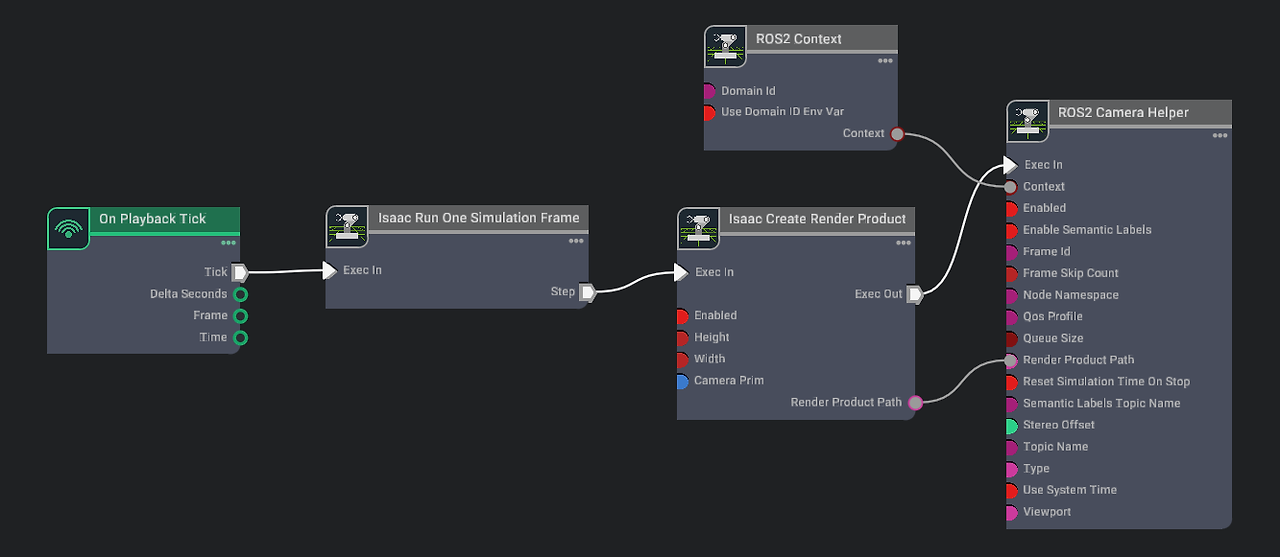
- omni grapth를 통해 시뮬상의 카메라 view를 ros topic 으로 연결합니다.
- isaac create render product에서 target을 아까 추가한 카메라 prim으로 잡아줍니다. 이후 ROS2 Camera helper에서 카메라의 토픽명과 타입을 설정할 수 있습니다.
ROS2 카메라 토픽을 Rviz2를 통해 확인
Rviz 상에서 시뮬레이션의 카메라를 토픽으로 받아올 수 있는 것을 확인하였습니다. 카메라가 두대로 늘어난다면 omni grapth를 추가한다면 앞뒤 카메라를 설정할 수 있을 것입니다!

Adding noise to camera
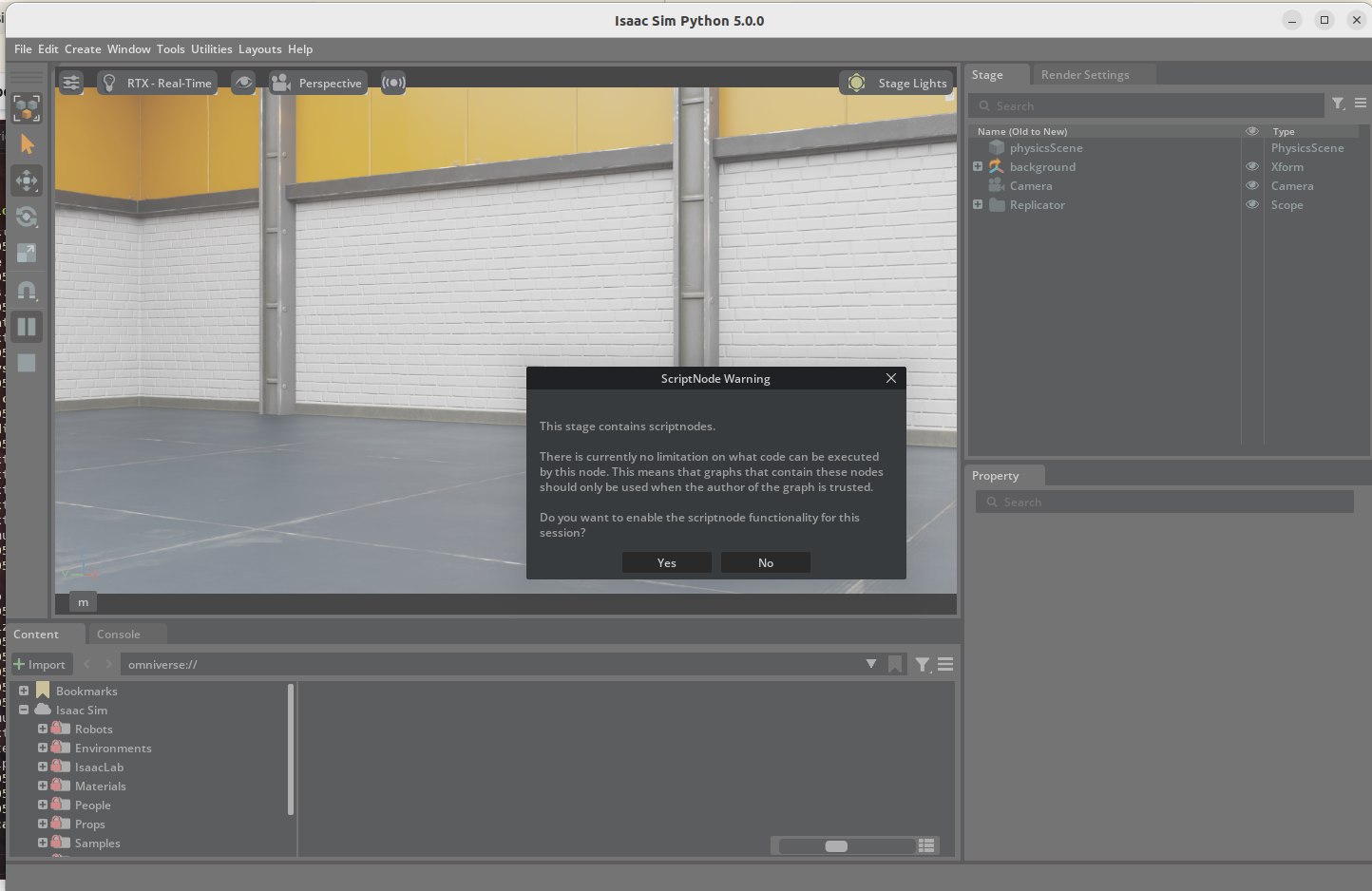

cd ~/isaacsim
./python.sh standalone_examples/api/isaacsim.ros2.bridge/camera_noise.py- isaac sim ros2가 source된 터미널(rclpy가 load가능한)에서 위의 명령어를 입력한 후 script warnning을 check한다.
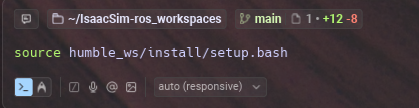
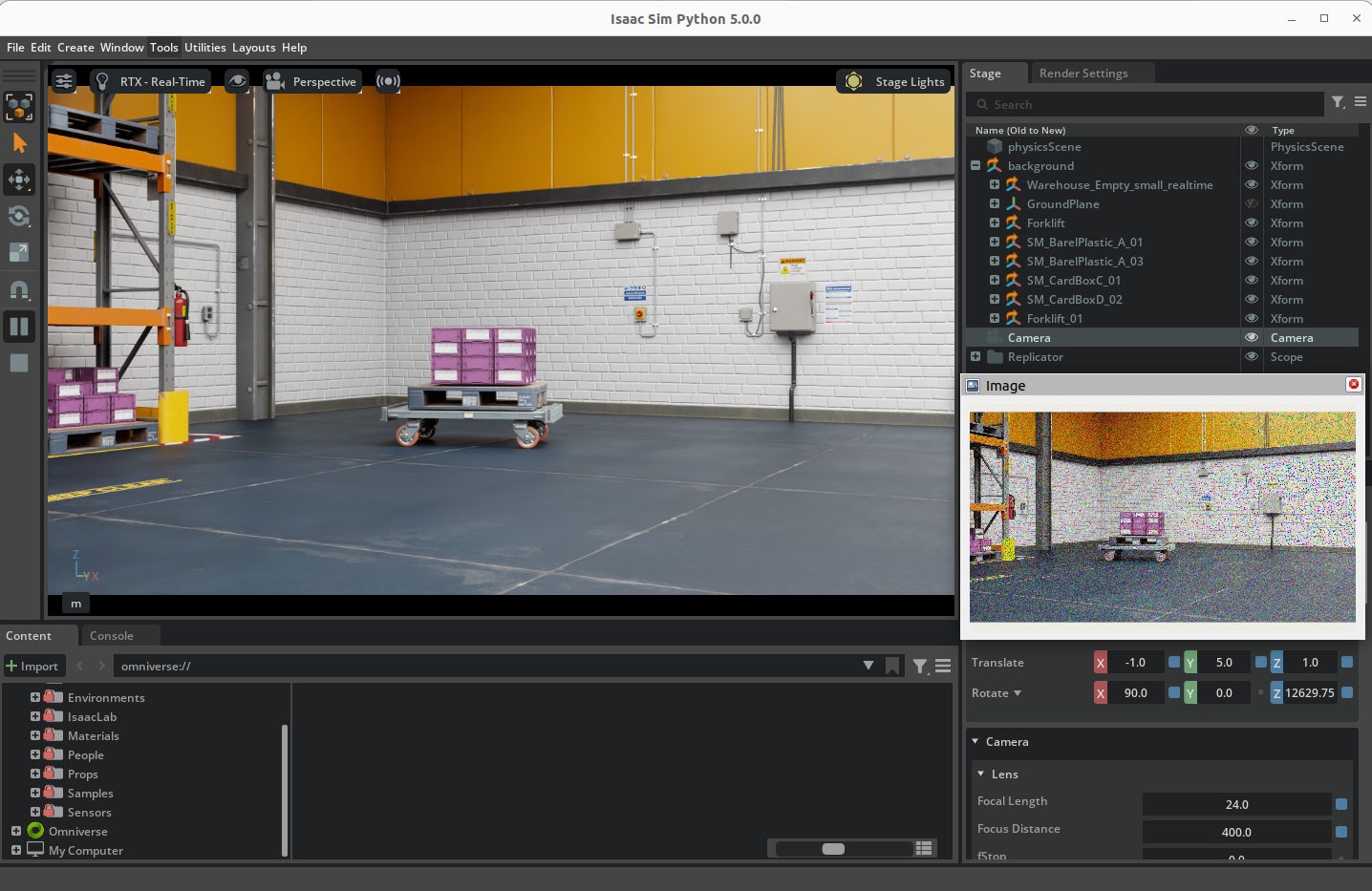
- 먼저 내 host ros2 workspace를 source한다.
- 이후 rviz2로 augmentated된 rgb토픽을 확인한다. 그러면 이렇게 노이즈가 추가된 카메라 이미지를 얻을 수 있다.
# SPDX-FileCopyrightText: Copyright (c) 2020-2025 NVIDIA CORPORATION & AFFILIATES. All rights reserved.
# SPDX-License-Identifier: Apache-2.0
#
# Licensed under the Apache License, Version 2.0 (the "License");
# you may not use this file except in compliance with the License.
# You may obtain a copy of the License at
#
# http://www.apache.org/licenses/LICENSE-2.0
#
# Unless required by applicable law or agreed to in writing, software
# distributed under the License is distributed on an "AS IS" BASIS,
# WITHOUT WARRANTIES OR CONDITIONS OF ANY KIND, either express or implied.
# See the License for the specific language governing permissions and
# limitations under the License.

import sys

from isaacsim import SimulationApp

CAMERA_STAGE_PATH = "/Camera"
ROS_CAMERA_GRAPH_PATH = "/ROS_Camera"
BACKGROUND_STAGE_PATH = "/background"
BACKGROUND_USD_PATH = "/Isaac/Environments/Simple_Warehouse/warehouse_with_forklifts.usd"

CONFIG = {"renderer": "RaytracedLighting", "headless": False}

simulation_app = SimulationApp(CONFIG)
import carb
import numpy as np
import omni
import omni.graph.core as og
import omni.replicator.core as rep
import omni.syntheticdata._syntheticdata as sd
import warp as wp
from isaacsim.core.api import SimulationContext
from isaacsim.core.utils import extensions, stage
from isaacsim.core.utils.render_product import set_camera_prim_path
from isaacsim.storage.native import get_assets_root_path
from omni.kit.viewport.utility import get_active_viewport
from pxr import Gf, Usd, UsdGeom

# enable ROS bridge extension
extensions.enable_extension("isaacsim.ros2.bridge")

simulation_app.update()

simulation_context = SimulationContext(stage_units_in_meters=1.0)

# Locate Isaac Sim assets folder to load environment and robot stages
assets_root_path = get_assets_root_path()
if assets_root_path is None:
    carb.log_error("Could not find Isaac Sim assets folder")
    simulation_app.close()
    sys.exit()

# Loading the simple_room environment
stage.add_reference_to_stage(assets_root_path + BACKGROUND_USD_PATH, BACKGROUND_STAGE_PATH)

# Creating a Camera prim
camera_prim = UsdGeom.Camera(omni.usd.get_context().get_stage().DefinePrim(CAMERA_STAGE_PATH, "Camera"))
xform_api = UsdGeom.XformCommonAPI(camera_prim)
xform_api.SetTranslate(Gf.Vec3d(-1, 5, 1))
xform_api.SetRotate((90, 0, 0), UsdGeom.XformCommonAPI.RotationOrderXYZ)
camera_prim.GetHorizontalApertureAttr().Set(21)
camera_prim.GetVerticalApertureAttr().Set(16)
camera_prim.GetProjectionAttr().Set("perspective")
camera_prim.GetFocalLengthAttr().Set(24)
camera_prim.GetFocusDistanceAttr().Set(400)

simulation_app.update()

# grab our render product and directly set the camera prim
render_product_path = get_active_viewport().get_render_product_path()
set_camera_prim_path(render_product_path, CAMERA_STAGE_PATH)


# GPU Noise Kernel for illustrative purposes, input is rgba, outputs rgb
@wp.kernel
def image_gaussian_noise_warp(
    data_in: wp.array3d(dtype=wp.uint8), data_out: wp.array3d(dtype=wp.uint8), seed: int, sigma: float = 0.5
):
    i, j = wp.tid()
    dim_i = data_out.shape[0]
    dim_j = data_out.shape[1]
    pixel_id = i * dim_i + j
    state_r = wp.rand_init(seed, pixel_id + (dim_i * dim_j * 0))
    state_g = wp.rand_init(seed, pixel_id + (dim_i * dim_j * 1))
    state_b = wp.rand_init(seed, pixel_id + (dim_i * dim_j * 2))

    data_out[i, j, 0] = wp.uint8(float(data_in[i, j, 0]) + (255.0 * sigma * wp.randn(state_r)))
    data_out[i, j, 1] = wp.uint8(float(data_in[i, j, 1]) + (255.0 * sigma * wp.randn(state_g)))
    data_out[i, j, 2] = wp.uint8(float(data_in[i, j, 2]) + (255.0 * sigma * wp.randn(state_b)))


# register new augmented annotator that adds noise to rgba and then outputs to rgb to the ROS publisher can publish
rep.annotators.register(
    name="rgb_gaussian_noise",
    annotator=rep.annotators.augment_compose(
        source_annotator=rep.annotators.get("rgb", device="cuda"),
        augmentations=[
            rep.annotators.Augmentation.from_function(
                image_gaussian_noise_warp, sigma=0.1, seed=1234, data_out_shape=(-1, -1, 3)
            ),
        ],
    ),
)

# Create a new writer with the augmented image
rep.writers.register_node_writer(
    name=f"CustomROS2PublishImage",
    node_type_id="isaacsim.ros2.bridge.ROS2PublishImage",
    annotators=[
        "rgb_gaussian_noise",
        omni.syntheticdata.SyntheticData.NodeConnectionTemplate(
            "IsaacReadSimulationTime", attributes_mapping={"outputs:simulationTime": "inputs:timeStamp"}
        ),
    ],
    category="custom",
)
# Register writer for Replicator telemetry tracking
(
    rep.WriterRegistry._default_writers.append("CustomROS2PublishImage")
    if "CustomROS2PublishImage" not in rep.WriterRegistry._default_writers
    else None
)

# Create the new writer and attach to our render product
writer = rep.writers.get(f"CustomROS2PublishImage")
writer.initialize(topicName="rgb_augmented", frameId="sim_camera")
writer.attach([render_product_path])

simulation_app.update()
# Need to initialize physics getting any articulation..etc
simulation_context.initialize_physics()
simulation_context.play()

frame = 0

while simulation_app.is_running():
    # Run with a fixed step size
    simulation_context.step(render=True)

    if simulation_context.is_playing():
        # Rotate camera by 0.5 degree every frame
        xform_api.SetRotate((90, 0, frame / 4.0), UsdGeom.XformCommonAPI.RotationOrderXYZ)

        frame = frame + 1

simulation_context.stop()
simulation_app.close()
'isaac sim & lab' 카테고리의 다른 글
| [Isaac sim Tutorial] Part 5. ROS2 Publish rate, Qos 조정 (0) | 2025.12.01 |
|---|---|
| [Isaac sim Tutorial] Part 4. TF trees and Odometry (0) | 2025.11.28 |
| [Isaac sim Tutorial] Part 3. RTX Lidar sensors (0) | 2025.11.27 |
| [Isaac sim Tutorial] Part 1. Turtle bot을 통한 ros 연결 (0) | 2025.11.26 |
| ubuntu 22.04에서 isaac sim 5.0 세팅 하는법 (0) | 2025.11.26 |


