
LOE
[Isaac sim Tutorial] Part 5. ROS2 Publish rate, Qos 조정 본문
# This must be called after a stage is loaded. Timeline must be stopped when setting SetTimeCodesPerSecond and set_target_framerate. This is persistent between stopping and replaying:
import omni
physics_rate = 60 # fps

timeline = omni.timeline.get_timeline_interface()
stage = omni.usd.get_context().get_stage()
timeline.stop()

stage.SetTimeCodesPerSecond(physics_rate)
timeline.set_target_framerate(physics_rate)

timeline.play()
출처
https://docs.isaacsim.omniverse.nvidia.com/5.0.0/ros2_tutorials/tutorial_ros2_publish_rate.html
ROS2 Setting Publish Rates — Isaac Sim Documentation
The file which contains all of the steps in this tutorial can be opened by going to the Isaac Sim Content browser and click Isaac Sim>Samples>ROS2>Scenario>turtlebot_tutorial_multi_sensor_publish_rates.usd. After opening the file, remember to run the steps
docs.isaacsim.omniverse.nvidia.com
https://docs.isaacsim.omniverse.nvidia.com/5.0.0/ros2_tutorials/tutorial_ros2_qos.html
ROS 2 Quality of Service (QoS) — Isaac Sim Documentation
Note By default Fast DDS (formerly Fast RTPS) does not store depth so depth policy may appear as UNKNOWN. Try running Isaac Sim and ROS2 nodes using Cyclone DDS to retrieve depth info. If depth policy still appears as UNKNOWN after switching to Cyclone DDS
docs.isaacsim.omniverse.nvidia.com
Omini Gate node
- 우리가 여태까지 만들어온 omni graph의 Action graph에서 on play tick이라는 것을 다양한 노드들과 연결해왔습니다. 이때 simulation rate마다 한번씩 그 tick이 돌아오므로 이러한 노드들의 데이터 발행주기는 이 simulation rate에 종속되어 있다고 볼 수 있습니다.
- Isaac Simulation Gate 노드를 통해 omni graph의 tick을 우리가 직접 정의할 수 있습니다.
IMU 센서 추가
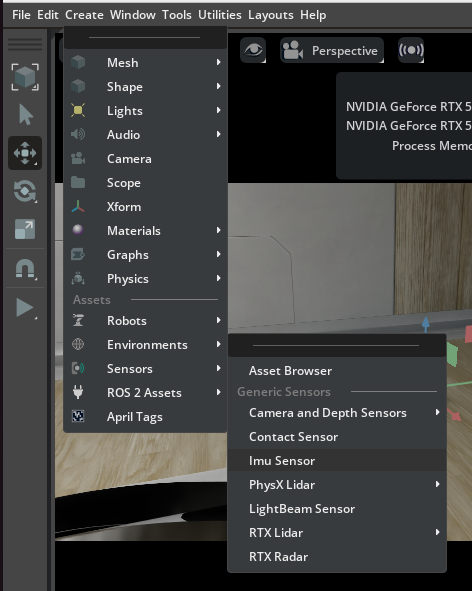
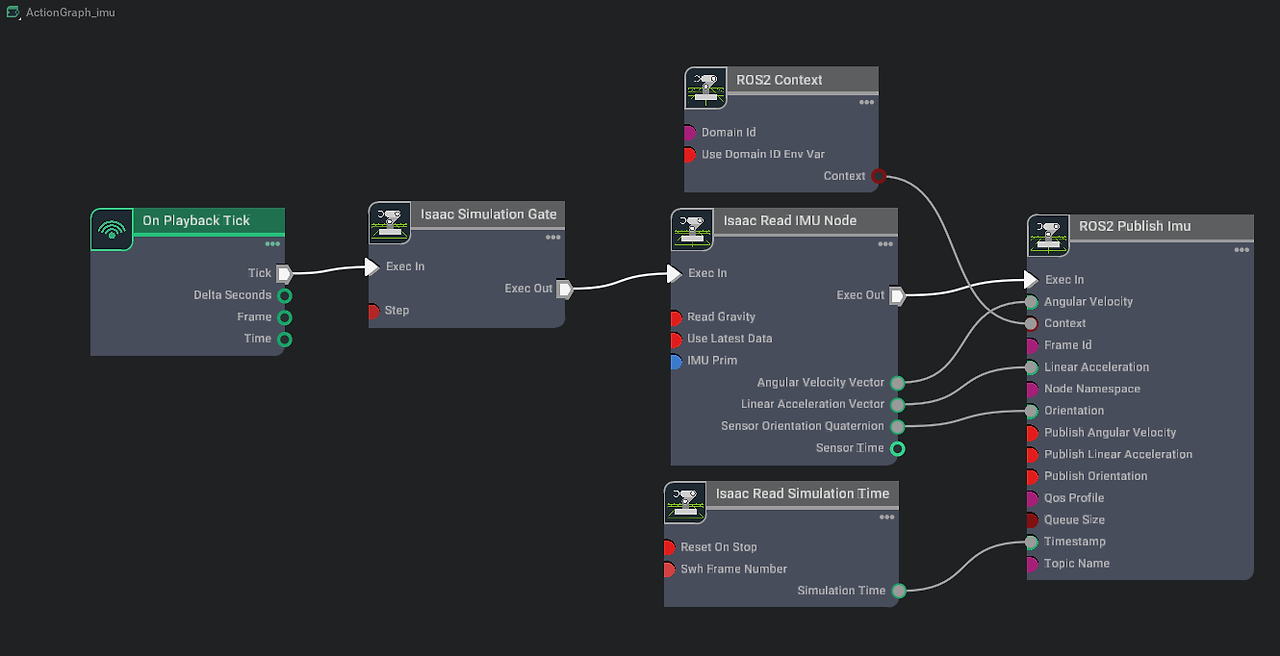
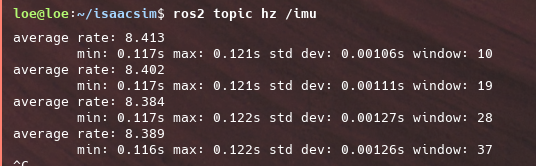
- isaac simulation gate node의 속성에서 step size를 2로 변경하여 연결된 downstream node들이 tick speed를 절반으로 가지도록 해줍니다.
- read IMU Node에서 우리가 추가한 imu sensor prim을 선택합니다.
- Ros2 Publish Imu node에서 frameID를 내 imu가 위치한 link의 이름으로 변경해줍니다. (ex : a__namespace_imu_link)
topic publish rate

SDG Pipeline 변경하기
카메라와 라이다 센서는 Action graph의 helper node 속성을 변경함으로써 발행주기를 변경할 수 있다.
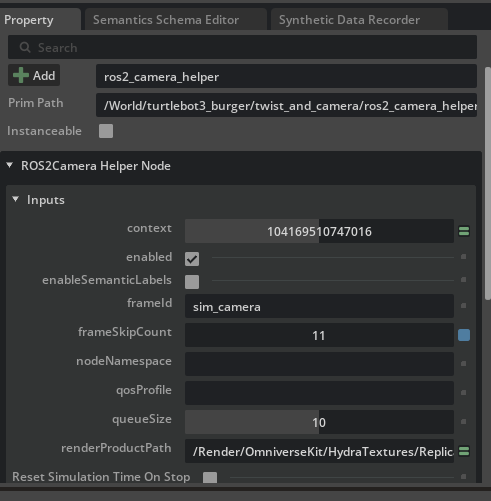
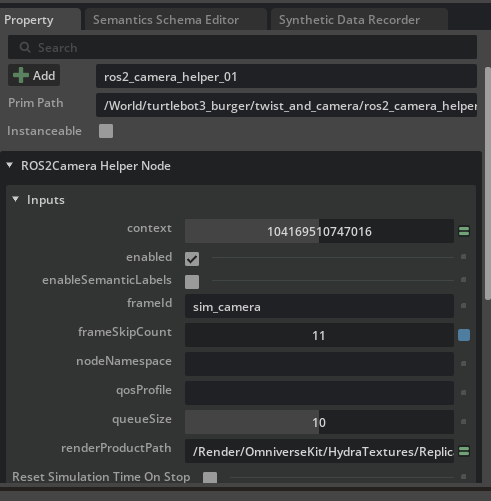

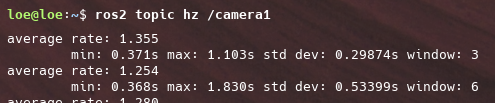
- 카메라 Helper node의 frame skip count를 11로 변경하여 every 12 frame마다 하나의 토픽이 발행되도록 합니다.
simulation rate 변경하기
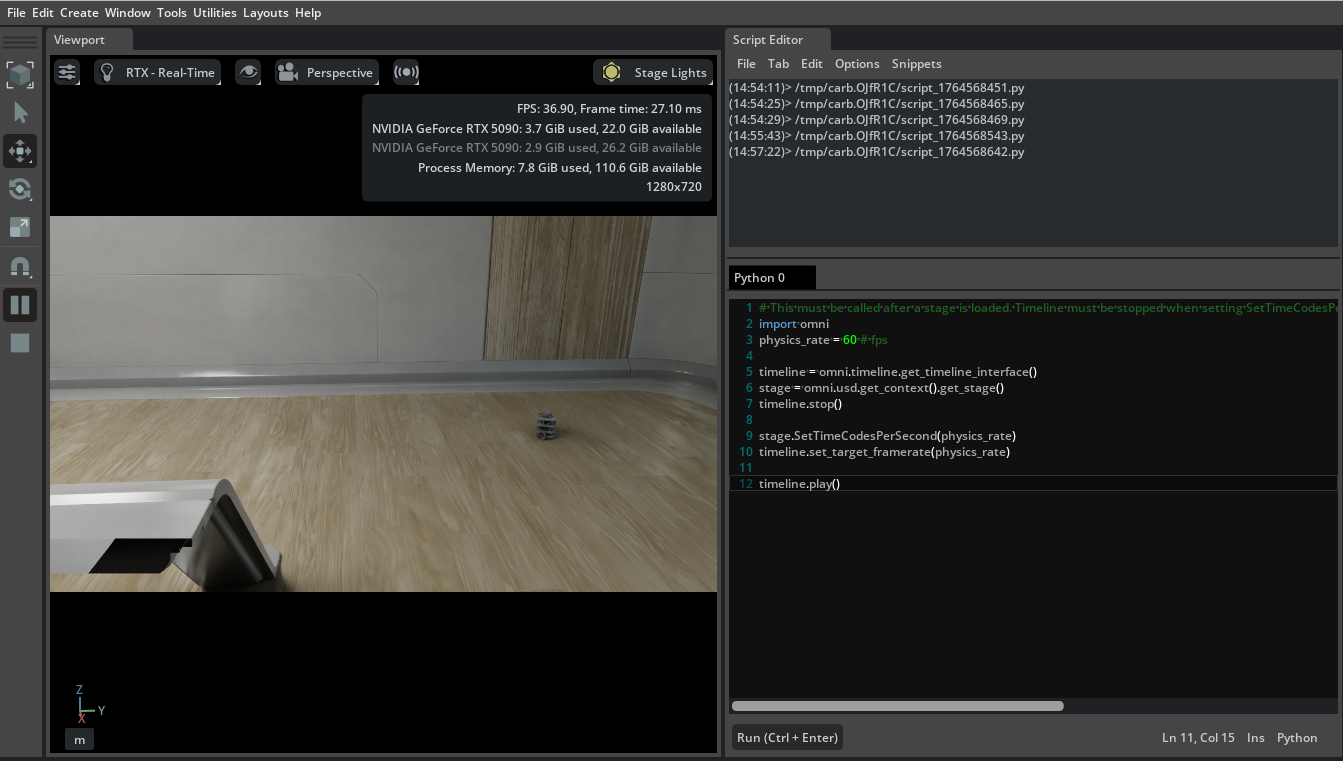
- python editor를 열어 아래의 python script를 넣고 실행해주면 scene의 FPS가 설정한대로 변경되고 이에따라 topic들의 hz가 변동된다.
# Change the carb settings. This is not persistent between when stopping and replaying

import carb
physics_rate = 60 # fps
carb_settings = carb.settings.get_settings()
carb.settings.get_settings().set_bool("/app/runLoops/main/rateLimitEnabled", True)
carb.settings.get_settings().set_int("/app/runLoops/main/rateLimitFrequency", int(physics_rate))
carb.settings.get_settings().set_int("/persistent/simulation/minFrameRate", int(physics_rate))
ROS 2 Quality of Service (QoS)
QoS란 무엇일까?
- QoS 설정은 ROS 2 노드 간의 통신(퍼블리셔/서브스크립션, 서비스 서버/클라이언트)을 어떻게 처리할지 조정할 수 있는 정책들의 집합입니다.
- QoS 정책의 구성
- 기록 (History) 및 깊이 (Depth)
- Keep last: 설정된 깊이(Depth)(큐 크기)까지만 메시지를 저장합니다.
- Keep all: 미들웨어의 리소스 허용 범위 내에서 모든 메시지를 저장합니다.
- Depth (큐 크기): 'Keep last' 정책이 설정되었을 때만 유효하며, 저장할 메시지의 최대 개수입니다.
- 신뢰성 (Reliability)
- Best effort (최선형): 메시지 손실이 발생할 수 있지만, 가장 빠르게 전송을 시도합니다. (손실이 허용되는 환경에 적합)
- Reliable (신뢰성): 모든 메시지의 전송을 보장하며, 손실 시 재전송을 시도합니다. (중요 데이터에 적합)
- 내구성 (Durability)
- Volatile (휘발성): 구독이 되기 전까지 메시지를 유지하려는 시도가 없습니다. 연결된 시점 이후의 새 메시지만 받습니다.
- Transient local (일시적 로컬): 퍼블리셔가 메시지 샘플을 저장하여, 나중에 연결된 서브스크립션에게도 이전 메시지를 전달합니다.
- 기록 (History) 및 깊이 (Depth)
Setting QoS Profile for ROS 2 OmniGraph nodes

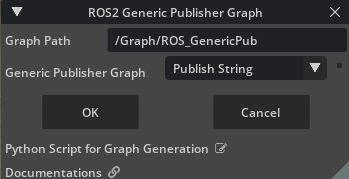
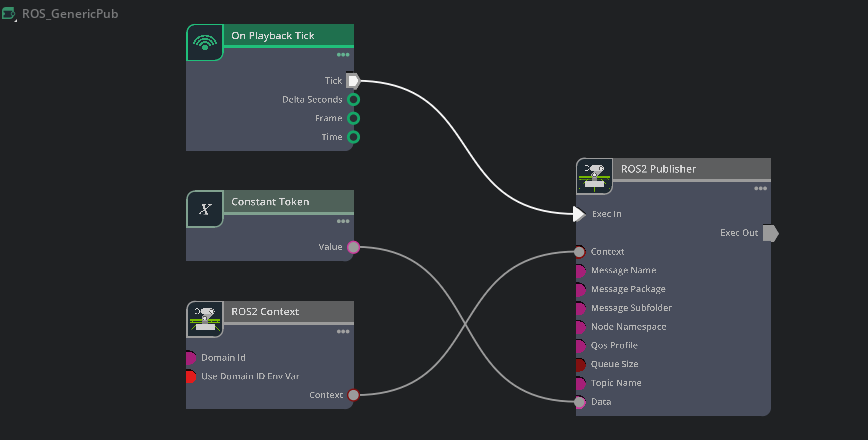
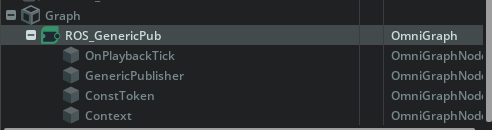
- Generic Publisher를 클릭한 후 publish string으로 변경후 그래프를 생성합니다.
- ROS2 Publisher는 아래 json 형식의 string을 기본 input으로 받습니다.
- depth 는 언제나 양수, deadline, lifespan, leaseDuration은 float으로 설정해야 유효한 설정으로 인식되므로 주의
{
    "history": "keepLast",
    "depth": 10,
    "reliability": "reliable",
    "durability": "volatile",
    "deadline": 0.0,
    "lifespan": 0.0,
    "liveliness": "systemDefault",
    "leaseDuration": 0.0
}
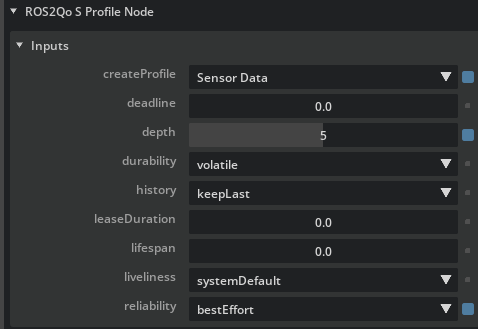
- ROS2 QoS Profile을 ROS2 Publisher에 연결하여 QoS설정을 완료할 수 있습니다.
- 여기서 createProfile을 sensors data로 변경합니다.
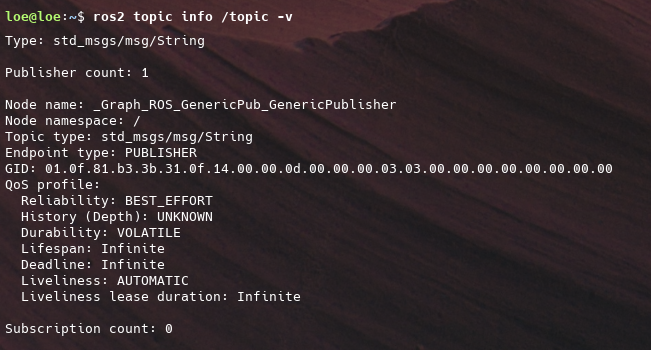
- ROS2 Publisher가 발행하는 토픽명이 /topic이므로 topic의 info를 찍어보았을 때 아래와 같이 profile이 sensors data의 설정과 같은 것을 확인할 수 있습니다.
Creating Static Publishers
- 정적 퍼블리셔는 메시지를 오직 한 번만 발행하지만, 해당 메시지를 토픽에 연결되는 모든 서브스크립션이 받을 수 있도록 보장하는 특별한 형태의 퍼블리셔입니다.
- 정적 퍼블리셔는 주로 초기 설정 값, 환경 지도(Map), 또는 변하지 않는 중요한 상태 정보와 같이, 노드가 언제 시작하든 관계없이 모든 새 노드가 즉시 알아야 하는 데이터를 다룰 때 사용됩니다.
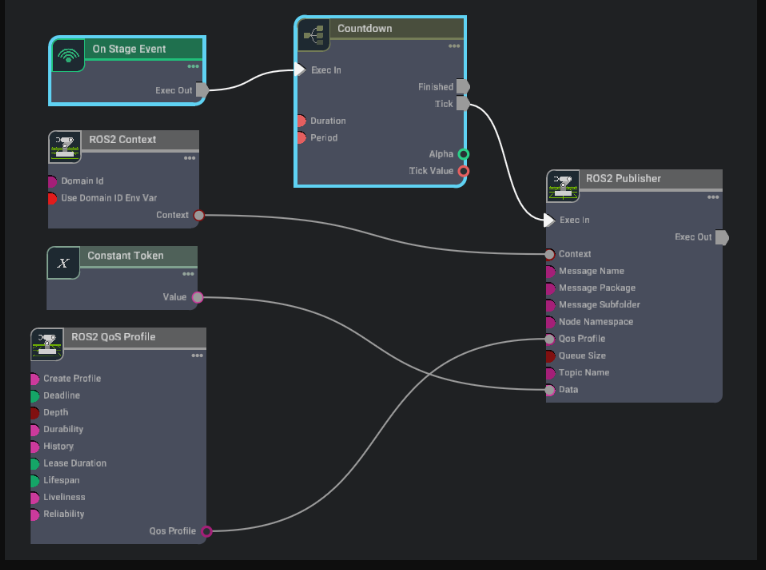
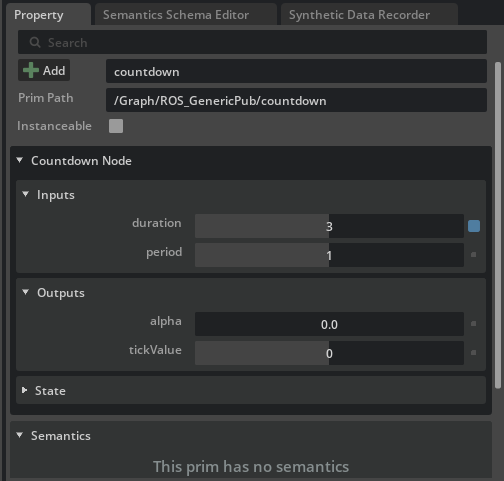

- on play by tick노드를 빼고 on stage event로 변경해줍니다. 이후 event name을 simulation start play로 변경합니다.
- 연결된 countdown 노드에 input duration을 3으로 period를 1로 변경해줍니다.
- 이를 통해 연결된 ROS2 Publisher 노드는 simulation이 시작된 이후 3프레임 후에 tick을 전달 받게 됩니다.
- ROS2 QoS Profile 노드를 Default for publisher/subscribers로 변경하고 depth를 1로 durability를 transientLocal로 변경해줍니다.
- 하나의 터미널에서 토픽을 찍어본후 다른 터미널에서 다시한번 토픽을 찍어봅니다. transientLocal이므로 토픽 메세지를 하나 저장하고 있게 되고 이를 서로 다른 터미널에서 구독했을때 동일한 메세지가 전송되는것을 확인할 수 있게 됩니다.
ros2 topic echo /topic
'isaac sim & lab' 카테고리의 다른 글
| [Isaac sim Tutorial] Part 7. H1 휴머노이드 policy 제어 (0) | 2025.12.03 |
|---|---|
| [Isaac sim Tutorial] Part 6. ROS2 Joint Control (0) | 2025.12.02 |
| [Isaac sim Tutorial] Part 4. TF trees and Odometry (0) | 2025.11.28 |
| [Isaac sim Tutorial] Part 3. RTX Lidar sensors (0) | 2025.11.27 |
| [Isaac sim Tutorial] Part 2. Ros2 Cameras (0) | 2025.11.27 |


